NetFUNNEL Integration
NetFunnel is a virtual waiting room that integrates with Wave to protect your services during traffic surges. While Wave handles pod scaling, NetFunnel manages traffic flow, queuing incoming requests until your infrastructure is ready to handle them.
What is NetFunnel?
NetFunnel is a virtual waiting room designed to manage reliable traffic flow during high-demand periods. It creates a controlled queuing environment where visitors wait in an organized manner, preventing server overload and maintaining site stability during traffic surges such as product launches, flash sales, or other peak events.
Wave integrates with NetFunnel to provide automated, metrics-driven traffic management. When your application experiences sudden traffic spikes, Wave automatically activates NetFunnel's queue to hold incoming requests while scaling your pods. Once resources are available and metrics stabilize, NetFunnel releases the queued traffic, ensuring a smooth user experience without overwhelming your services.
The integration uses rule-based triggers (CPU, memory, max replicas) to automatically turn NetFunnel segments ON and OFF, coordinating traffic management with Wave's scaling decisions.
How the integration works
The integration runs a continuous loop of monitoring and automated segment activation:
- Monitor metrics: continuously tracks CPU, memory, and current replica count for deployments with NetFunnel rules.
- Detect a threshold breach: identifies when the configured thresholds are exceeded (for example, CPU above 80%, memory above 85%, or max replicas reached).
- Turn segments ON: sends concurrent API requests to activate all mapped segments, enabling the virtual waiting room.
- Queue traffic while scaling: NetFunnel holds incoming requests and shows users their queue position, while Wave's Autopilot scales pods to absorb the load.
- Wait for stabilization, then cooldown: once usage drops below the thresholds, a configurable cooldown period (for example, 300 seconds) prevents rapid toggling.
- Turn segments OFF and log: deactivates the segments, resumes normal traffic flow, and records every activation and deactivation with a metrics snapshot.
NetFunnel vs manual traffic management
| Feature | Manual Management | NetFunnel Integration |
|---|---|---|
| Traffic Control | Manual Nginx/Ingress rules or load balancer limits | Automated queue activation based on resource metrics |
| Scaling Coordination | Separate systems, manual synchronization | Integrated with Wave Autopilot |
| Response Time | Minutes to hours (manual intervention) | Seconds (automatic trigger) |
| Cooldown Logic | Custom scripts or no protection | Built-in cooldown periods prevent rapid On/Off cycling |
| Audit Trail | Manual logging or none | Automatic logs with metrics snapshots |
| Configuration | Code changes, config file edits | UI-based rules in Wave console |
| Queue Management | Basic rate limiting | Full waiting room with position tracking |
Core features
1. Rule-based triggers
Automatically activate NetFunnel based on resource metrics. When all configured thresholds are exceeded, all mapped segments turn ON:
| Trigger Type | Configuration | Activation Condition |
|---|---|---|
| CPU Threshold | Set utilization % (e.g., 80%) | Current CPU usage > threshold |
| Memory Threshold | Set utilization % (e.g., 85%) | Current memory usage > threshold |
| Max Replicas Reached | Boolean toggle | Current replicas = Max replicas (prevents overload when scaling capacity is exhausted) |
Cooldown Period:
- Configurable delay (seconds) after turning OFF segments
- Prevents rapid On/Off cycling during metric fluctuations
- Default: 60 seconds (1 minute)
- Recommended: 300 seconds (5 minutes) for production workloads
- During cooldown, segments stay OFF even if thresholds are breached again
Trigger Logic:
- Rules are AND conditions: all configured thresholds must be exceeded to activate segments
- Only configured rules are evaluated (unconfigured thresholds are ignored)
- All mapped segments turn ON/OFF together (no individual control)
- Metrics are evaluated at regular intervals (configurable task frequency)
- Example: if the CPU threshold (80%) and the memory threshold (85%) are both configured, NetFunnel activates only when both CPU > 80% AND Memory > 85%
2. Segment mapping
Map Kubernetes deployments to NetFunnel projects and segments:
Project and Segment Selection:
- Choose from existing NetFunnel projects in your account
- Select specific segments within projects
- Map multiple segments to a single deployment
Section Mode vs Basic Control:
- Section Control: advanced segment control with section-based management
- Basic Control: simple segment activation without sections
- Select the appropriate mode from the dropdown based on your NetFunnel project configuration
Segment Information Display:
- Max Inflow: maximum concurrent requests allowed through the segment
- Access Status: whether the segment accepts traffic
- Active Status: current ON/OFF state of the segment
Multiple Segments:
- A single deployment can map to multiple segments
- Useful for different traffic sources (web, mobile, API)
- All segments are managed by the same trigger rules
3. Automated lifecycle
NetFunnel segments transition through states automatically:
State Flow:
- Inactive: normal operation, no queue active
- Turning ON: API request sent when a threshold is breached
- Active: queue enabled, traffic managed
- Cooldown: metrics stabilized, waiting before deactivation
- Turning OFF: API request sent to disable the queue
Concurrent API Requests:
- Multiple segments are activated simultaneously
- NetFunnel processes the requests in parallel
- 5-second timeout per segment request
- Partial success is handled gracefully (some segments may succeed while others fail)
Error Handling:
- Connection timeouts are logged with details
- Authentication failures are reported
- Retry logic for transient errors
- Comprehensive error messages in the logs
Logging with Metrics Snapshot: every activation and deactivation is logged with the timestamp, segment status (ON/OFF), a success or failure indicator, the current CPU, memory, and replica count, the rule thresholds that triggered it, the cooldown status, and an error reason if it failed.
Prerequisites
Before enabling NetFunnel, ensure you have:
- Wave installed in your Kubernetes cluster
- Valid Wave license with the NetFunnel feature enabled
- NetFunnel SaaS account with an active subscription
- API credentials from your NetFunnel provider:
- Tenant ID
- Organization ID
- Access to
api.stclab.com(default host)
- Pre-configured segments in your NetFunnel account (projects and segments must exist)
- Wave Metrics Agent collecting CPU and memory data from deployments
Step 1: Configure NetFunnel credentials
Set up the connection between Wave and NetFunnel.
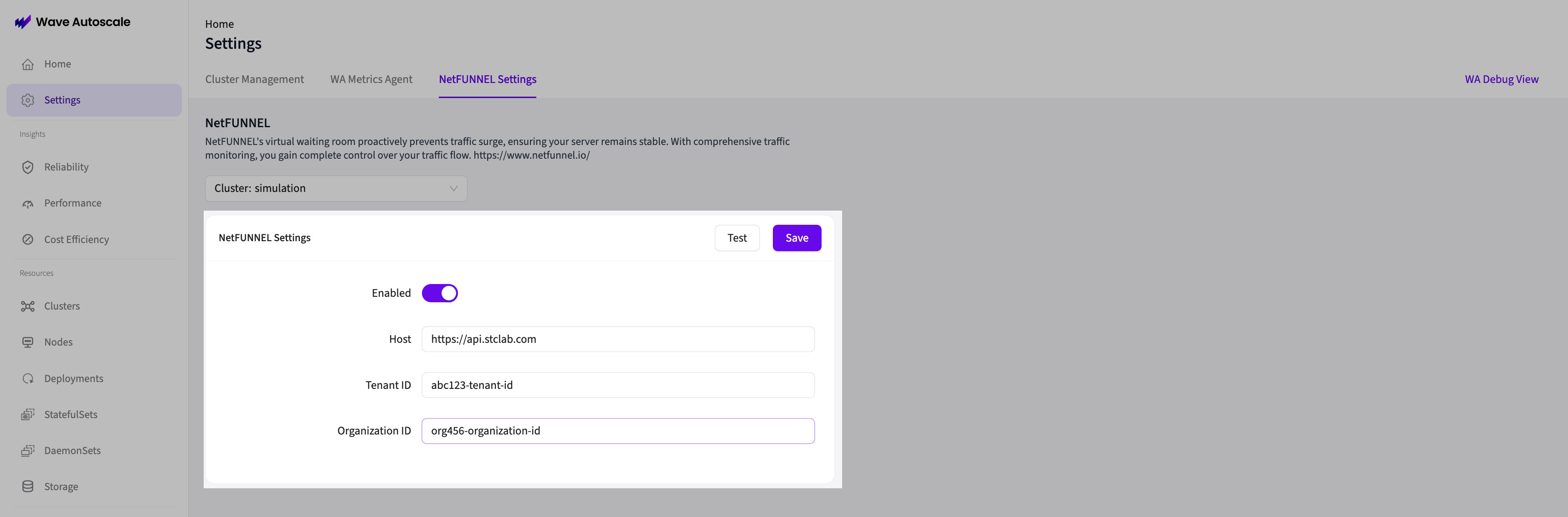
Access NetFunnel settings
- Log in to the Wave web console
- Click the Settings icon (gear) in the top-right corner
- Navigate to the NetFunnel tab
- Select your cluster from the dropdown
Enter API credentials
Configure the following fields:
- Enable: toggle ON to activate NetFunnel integration for this cluster
- Host: NetFunnel API endpoint (default:
https://api.stclab.com) - Tenant ID: your organization's tenant identifier from NetFunnel
- Organization ID: your organization ID from NetFunnel
Example:
Host: https://api.stclab.com
Tenant ID: abc123-tenant-id
Organization ID: org456-organization-id
Test the connection
- Click the Test Connection button
- Wave will call the NetFunnel API to retrieve authentication keys (clientId, clientSecret), verify the credentials, and display a success or error message
- If successful, you will see a "Connection successful" message
- If it fails, verify your credentials and network access to
api.stclab.com

Save the configuration
- Click Save to store the credentials
- NetFunnel integration is now enabled for deployments in this cluster

Connection test failed?
Common causes:
- Invalid credentials: double-check the Tenant ID and Organization ID with NetFunnel support
- Network access: ensure Wave can reach
api.stclab.com(check firewall and proxy settings) - License issue: verify your Wave license includes the NetFunnel feature
- Expired account: confirm your NetFunnel subscription is active
Contact NetFunnel support if the credentials are correct but the connection fails.
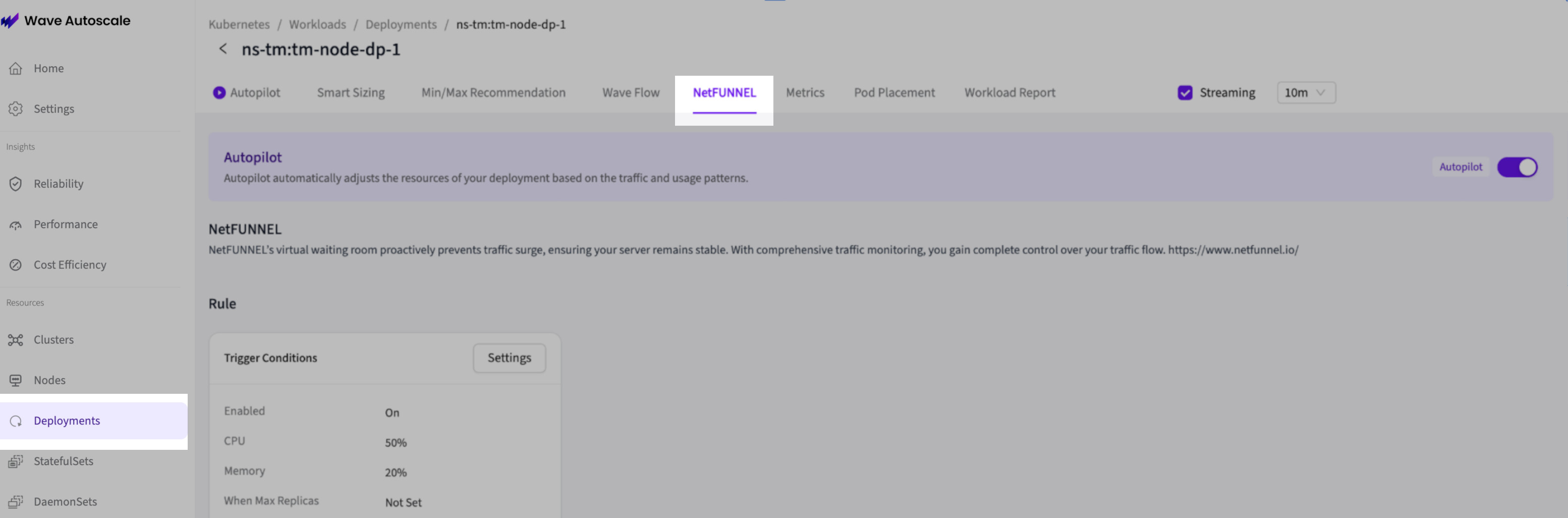
Step 2: Access the deployment
Navigate to the deployment you want to protect:
- From the left sidebar, select Deployments
- Choose your cluster from the dropdown
- Find the deployment you want to configure (for example, a web frontend or API gateway)
- Click the deployment name to open its detail page
Step 3: Configure NetFunnel rules
Set up the trigger conditions that activate the virtual waiting room.
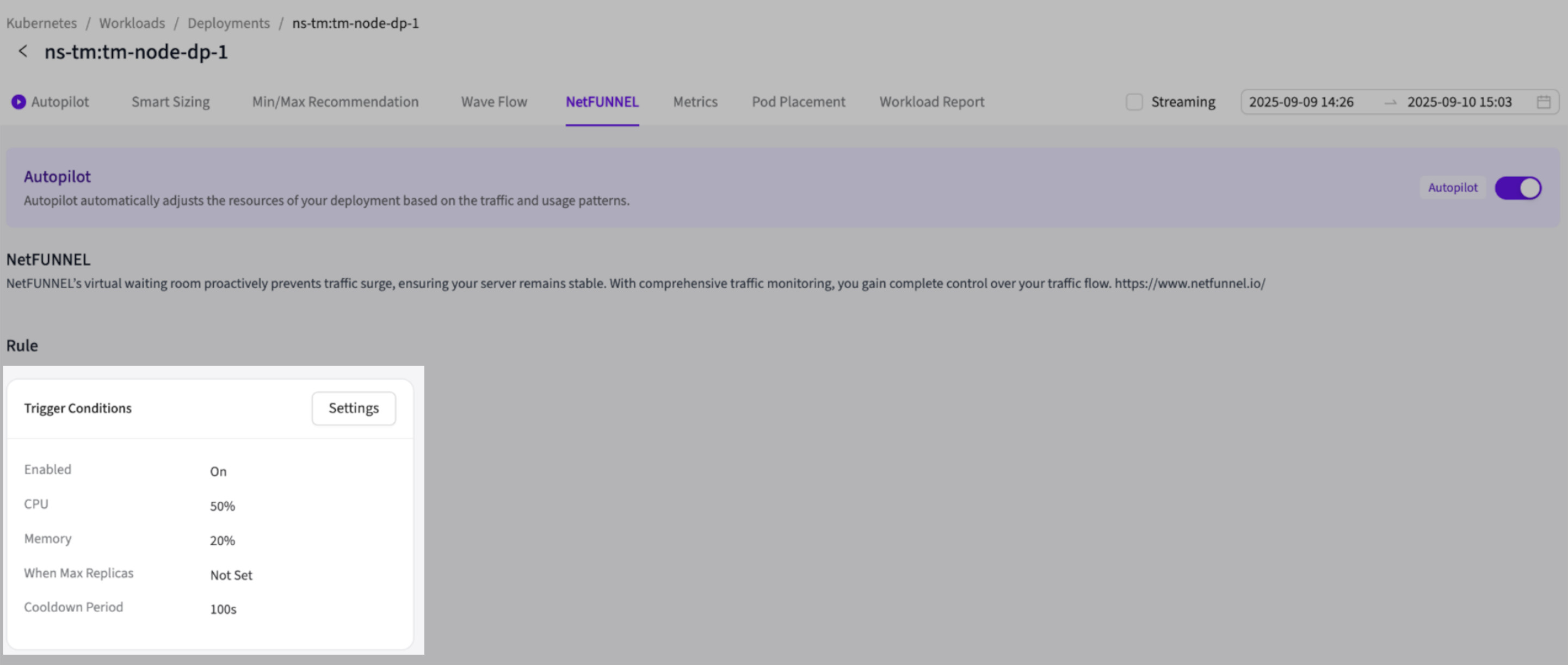
Open the NetFunnel configuration
- In the deployment detail page, go to the NetFunnel tab
- You will see sections for Trigger Conditions, Segment Mappings, and NetFunnel Logs
Configure trigger conditions
Click the Settings button to open the rules modal:
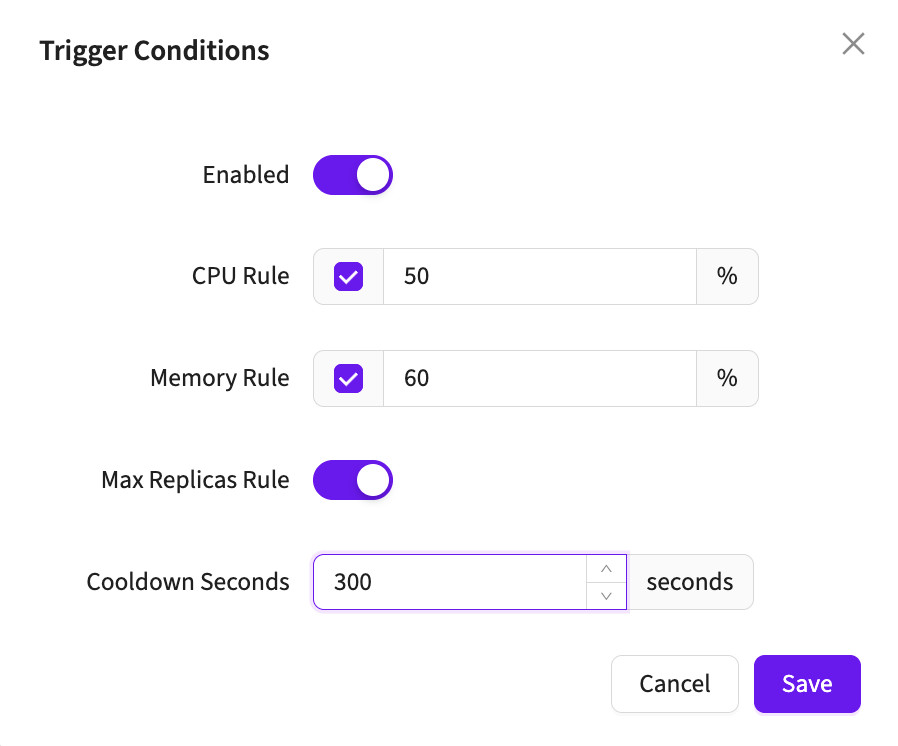
CPU Threshold:
- Enable: toggle to activate CPU-based triggering
- Value: enter a percentage (0-100)
- Example: 80 (activates when CPU usage > 80%)
Memory Threshold:
- Enable: toggle to activate memory-based triggering
- Value: enter a percentage (0-100)
- Example: 85 (activates when memory usage > 85%)
Max Replicas Trigger:
- Enable: toggle to activate when the deployment reaches max replicas
- Use case: prevent overload when scaling capacity is exhausted
- Example: ON (activates when current_replicas = max_replicas)
Cooldown Period:
- Value: enter a duration in seconds
- Default: 60 (1 minute)
- Purpose: prevents rapid On/Off cycling after segments turn OFF
- Example: 300 (5 minutes) for more conservative toggling, or 600 (10 minutes) for very stable traffic
Save the rules
- Click Save to apply the trigger configuration
- Rules take effect immediately
Understanding trigger logic
- AND condition: all configured thresholds must be exceeded to activate all mapped segments
- Only configured rules count: unconfigured thresholds are ignored
- Cooldown period: starts after turning OFF (not after turning ON)
- During cooldown: segments stay OFF even if thresholds are breached again
- Evaluation frequency: checked at regular intervals (configurable in Wave settings)
Example: if the CPU threshold (80%) and the memory threshold (85%) are both configured, segments turn ON only when both CPU > 80% AND Memory > 85%.
Step 4: Map NetFunnel segments
Connect your deployment to NetFunnel segments.
Open segment mapping
- In the NetFunnel tab, find the NetFUNNEL Segments section
- Click Add to open the mapping modal
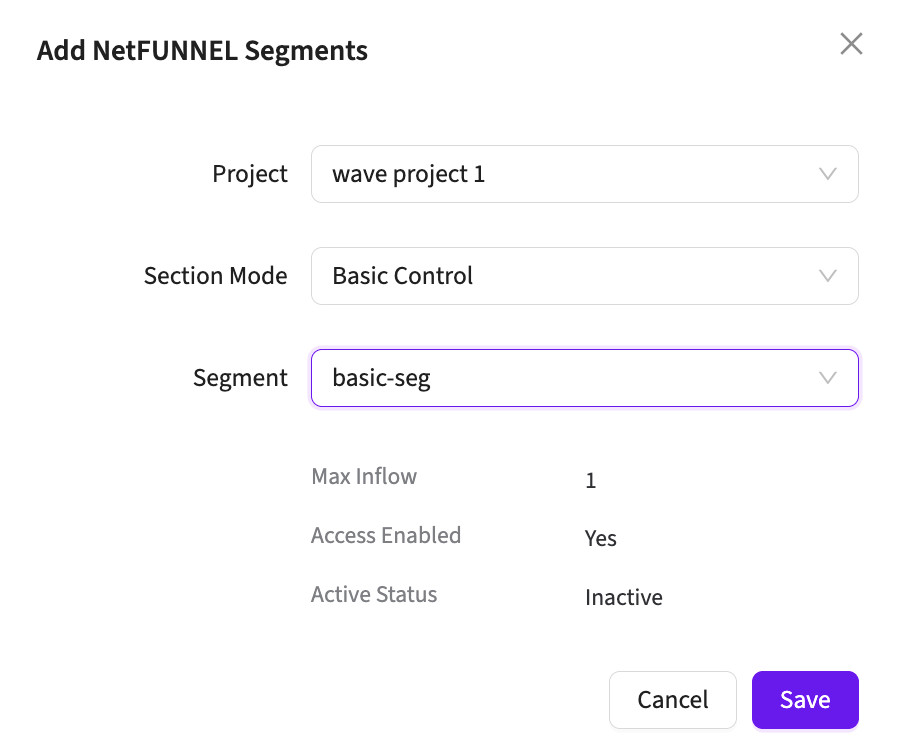
Select a project and segment
Configure the following fields:
Project:
- Dropdown of all projects in your NetFunnel account
- Select the project containing the segment you want to use
- Projects are fetched from the NetFunnel API using your credentials
Section Mode:
- Dropdown selector for the control mode type
- Section Control: for advanced segment control with section-based management
- Basic Control: for simple activation without sections
- Select the mode that matches your NetFunnel project configuration
Segment:
- Dropdown of all segments in the selected project
- Select the specific segment to activate and deactivate
- Segments are fetched based on the project and section-mode selection
Review segment information
The modal displays segment details:
- Max Inflow: maximum concurrent requests allowed (for example, 1000)
- Access Enabled: whether the segment accepts traffic (Yes/No)
- Active Status: current ON/OFF state (Active/Inactive)
These fields are read-only and fetched from NetFunnel for verification.
Save the segment mapping
- Click Save to create the mapping
- The segment appears in the deployment's segment list
- Repeat to add additional segments (for example, for different traffic sources)
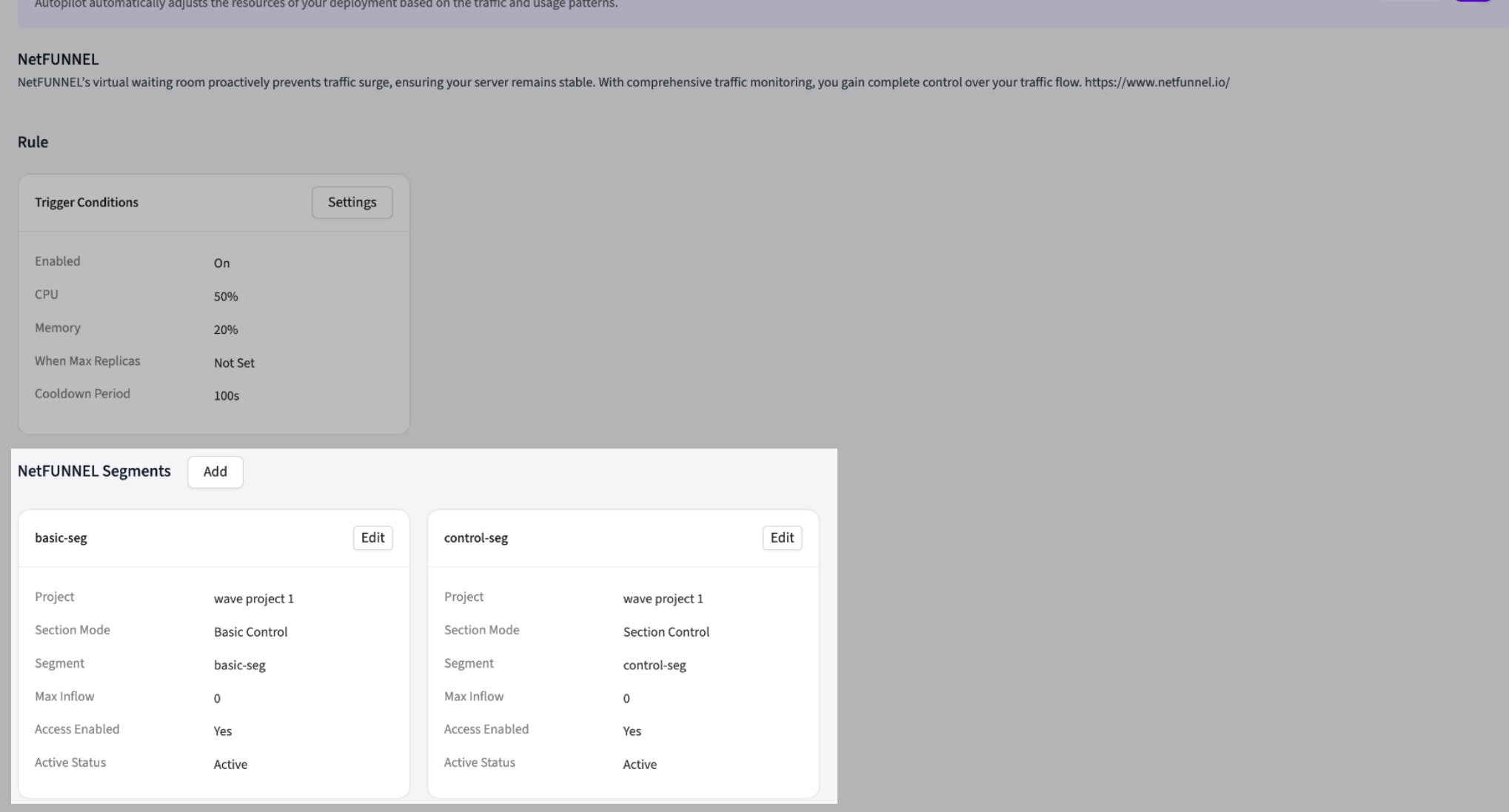
Multiple segment mapping
You can map multiple segments to a single deployment:
- Use case: different segments for web, mobile, and API traffic
- Behavior: all segments turn ON/OFF together when rules trigger
- Configuration: each segment is managed independently in NetFunnel but activated by the same Wave rules
Example:
Deployment: ecommerce-frontend
Segments:
  - Project: Production, Segment: Web Queue, Max Inflow: 5000
  - Project: Production, Segment: Mobile Queue, Max Inflow: 3000
  - Project: Production, Segment: API Queue, Max Inflow: 2000
Step 5: Monitor NetFunnel activity
Track segment activation and deactivation events.
View NetFunnel logs
In the deployment's NetFunnel tab, scroll to the NetFunnel Logs section:
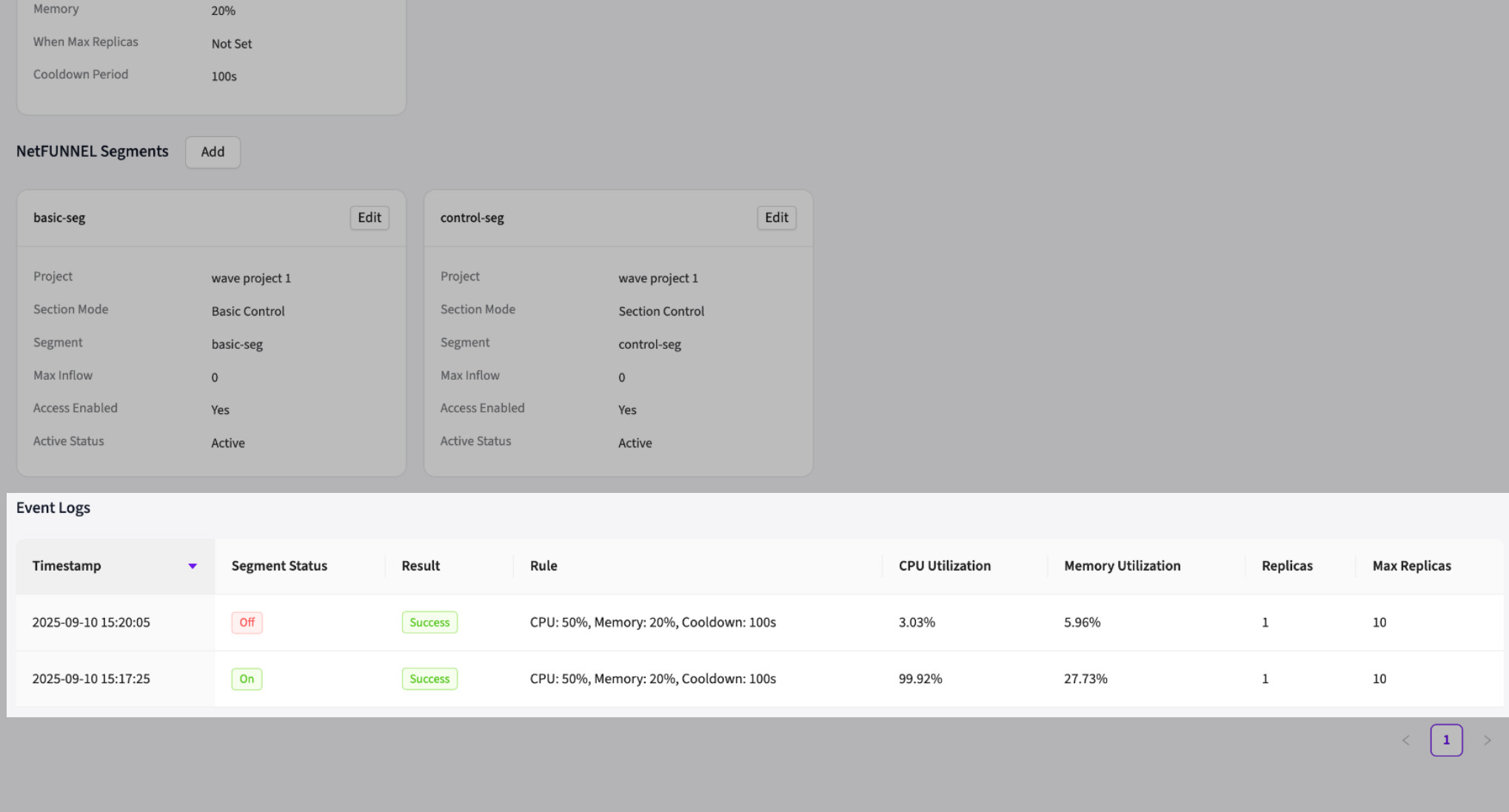
Log Table Columns:
| Column | Information | Use Case |
|---|---|---|
| Timestamp | When the event occurred | Correlate with traffic patterns |
| Segment Status | ON or OFF | See activation state changes |
| Result | Success or Fail (with Cooldown indicator) | Identify API errors and cooldown state |
| Rule | Combined: CPU threshold, Memory threshold, Max Replicas setting, Cooldown period | View all trigger rules that caused activation |
| CPU Utilization | Current CPU usage (%) | Verify threshold triggers |
| Memory Utilization | Current memory usage (%) | Verify threshold triggers |
| Replicas | Current pod count | See scaling state |
| Max Replicas | Maximum allowed pods | Context for capacity |
Note: the Result column includes a "Cooldown" tag when the system is in the cooldown period. The Rule column combines all trigger settings (CPU threshold, Memory threshold, Max Replicas, Cooldown seconds) in a single cell for easier viewing.
Error details
The UI logs table shows Success/Fail status in the Result column, but detailed error reasons are captured in the backend logs, not the UI table. To troubleshoot failed segment activations, check:
- Wave core service logs
- NetFunnel API response errors in the backend logs
- Network connectivity to
api.stclab.com
Common failure reasons include connection timeouts, authentication errors, and invalid segment configurations.
Interpreting logs
Successful Activation:
Timestamp: 2026-02-06 14:30:00
Segment Status: ON
Result: Success
Rule: CPU: 80%, Memory: 85%, Max Replicas: On, Cooldown: 60s
CPU Utilization: 82%
Memory Utilization: 87%
Replicas: 10
Max Replicas: 10
Interpretation: all three thresholds were exceeded (CPU > 80%, Memory > 85%, and Max Replicas reached), so segments turned ON successfully.
Cooldown Period:
Timestamp: 2026-02-06 14:35:00
Segment Status: OFF
Result: Success (Cooldown)
Rule: CPU: 80%, Memory: 85%, Max Replicas: On, Cooldown: 60s
CPU Utilization: 65%
Memory Utilization: 60%
Replicas: 10
Max Replicas: 10
Interpretation: metrics dropped below the thresholds and cooldown started (segments stay OFF for the 60s default, or longer if configured).
Failed Activation:
Timestamp: 2026-02-06 14:40:00
Segment Status: ON
Result: Fail
(Note: error details are logged in the backend; check Wave service logs for specific error messages)
Interpretation: the NetFunnel API call failed. Check network connectivity and the backend logs for the detailed error reason.
Example: quick setup for an e-commerce API
Here is a complete configuration for a production e-commerce API:
# Step 1: Settings -> NetFunnel
Credentials:
  Enable: ON
  Host: https://api.stclab.com
  Tenant ID: ecommerce-prod-tenant
  Organization ID: ecommerce-org-001

# Step 2: Deployments -> ecommerce-api -> NetFunnel tab
Trigger Rules:
  CPU Threshold: 80% (enabled)
  Memory Threshold: (disabled)
  Max Replicas: (disabled)
  Cooldown Period: 300 seconds (recommended for production)

  # Note: with only the CPU threshold enabled, NetFunnel activates when CPU > 80%.
  # If multiple thresholds were enabled, ALL would need to be exceeded (AND logic).

# Step 3: Segment Mapping
Segments:
  - Project: Production E-commerce
    Section Mode: true
    Segment: Checkout Queue
    Max Inflow: 1000

  - Project: Production E-commerce
    Section Mode: true
    Segment: Product Browse Queue
    Max Inflow: 5000

# Step 4: Test with Load
Behavior:
  - Normal: CPU 50%, 5 pods, segments OFF
  - Traffic spike: CPU 85%, 8 pods
  - Segments turn ON: queue activated
  - Autopilot scales: 8 -> 15 pods
  - CPU drops: 60%, 15 pods
  - Cooldown: 60s with segments ON (or 300s if configured)
  - Segments turn OFF: queue disabled, normal traffic
Troubleshooting
Common issues
Segments not activating:
- Enable NetFunnel in Settings and verify at least one threshold is configured
- Check that a segment mapping exists, and review the logs for errors
- Verify the license includes the NetFunnel feature and the credentials are valid
Rapid On/Off cycling:
- Increase the cooldown period (300s to 600s recommended for production)
- Adjust thresholds away from normal operating levels
- Consider using the Max Replicas trigger for more stable behavior
Connection failed:
- Verify network access to
api.stclab.com(port 443) - Double-check the Tenant ID and Organization ID with NetFunnel support
- Check proxy settings for outbound HTTPS
Segments stay ON:
- Expected during the cooldown period (prevents rapid toggling)
- Check the logs for the "Cooldown" indicator in the Result column
- If they never turn OFF, verify all thresholds dropped below their limits
Next steps
Now that NetFunnel is configured:
- Monitor logs: check the NetFunnel logs daily for activation patterns
- Adjust thresholds: fine-tune trigger conditions based on observed behavior
- Load test: use tools like k6, JMeter, or wrk to simulate traffic spikes and verify NetFunnel activation
- Configure multiple deployments: protect other high-traffic services with NetFunnel
- Set up alerts: create alerts for NetFunnel activation failures or high activation frequency
- Review segment settings: verify max inflow and other NetFunnel segment configurations match your needs
Need help? Check the NetFunnel logs (deployment detail page, NetFunnel tab, Logs table), re-test credentials under Settings, NetFunnel, Test Connection, review the Wave core logs for NetFunnel service errors, and contact your NetFunnel provider for API or segment issues. Confirm your Wave license includes the NetFunnel feature flag.