Auto Expansion
Auto Expansion prevents out-of-disk errors by automatically expanding Persistent Volume Claims when storage usage reaches configured thresholds. Instead of manual capacity monitoring and resize operations, Wave continuously tracks PVC usage and triggers expansions before applications run out of space.
How Auto Expansion Works
Auto Expansion operates through a continuous monitoring and expansion cycle:
- Monitor PVC Usage: The expansion task runs at configurable intervals (typically every few minutes), checking all configured PVCs
- Compare Usage Against Threshold: Calculates current usage percentage:
(used_bytes / capacity_bytes) × 100 - Trigger Expansion: When usage exceeds the configured threshold (e.g., 80%), expansion is triggered
- Calculate Expansion Size: Determines new capacity using either percentage-based or fixed-size expansion method
- Apply Max Capacity Limit: If configured, reduces expansion to stay within maximum capacity bounds
- Verify StorageClass Support: Checks that the PVC's StorageClass has
allowVolumeExpansion: true - Execute Expansion: Calls Kubernetes API to update the PVC with new capacity request
- Track Status: Monitors the expansion progress through Kubernetes PVC conditions and allocated resource statuses
- Log Results: Records all expansion attempts with timestamps, metrics, and status information
Configuration Settings
Auto Expansion uses the following per-PVC configuration:
| Setting | Description | Example | Notes |
|---|---|---|---|
| Threshold Percentage | Usage % that triggers expansion | 80% | Range: 0-100. Expansion occurs when current usage ≥ threshold |
| Expansion Percentage | Expand by % of current size | 50% | Example: 10 GiB → 15 GiB (50% increase). Mutually exclusive with fixed size |
| Expansion Size (Bytes) | Fixed expansion amount, entered in MiB in the console (converted to raw bytes when saved) | 1024 MiB → expansionSizeByte: 1073741824 | Always adds this amount. Mutually exclusive with percentage |
| Max Capacity | Upper limit to prevent runaway growth | 102400 MiB (100 GiB) | Optional. Once reached, no further expansion occurs |
| Enabled | Enable/disable for this PVC | true / false | Per-PVC toggle |
Choosing Between Expansion Methods
You must configure exactly one expansion method (percentage OR fixed size):
-
Percentage Expansion: Best for proportional growth patterns where storage needs scale with data size
- Example: User-uploaded content, document storage, media files
- 10 GiB → 15 GiB (50% expansion)
- 100 GiB → 150 GiB (50% expansion)
-
Fixed Size Expansion: Best for predictable, incremental growth patterns
- Example: Log files, time-series data, append-only databases
- 10 GiB → 11 GiB (+1 GiB)
- 100 GiB → 101 GiB (+1 GiB)
Expansion Status Types
Each expansion attempt transitions through these status values:
| Status | Meaning | When It Occurs | Next Steps |
|---|---|---|---|
| InProgress | Expansion submitted to K8s | API call succeeded, waiting for volume controller | Monitor PVC conditions. Most expansions complete in seconds to minutes |
| Completed | Expansion successful | PVC capacity matches or exceeds target capacity | None. Expansion cycle complete |
| ApiCallFailed | K8s API error | Network issue, authentication failure, or API timeout | Check connectivity, RBAC permissions, and retry |
| ExpansionFailed | Volume expansion error | StorageClass doesn't support expansion, underlying storage error | Check StorageClass configuration, verify storage provider supports online expansion |
| MaxCapacityReached | Hit configured limit | Would exceed max capacity setting | Increase max capacity or clean up data |
Configuration Access
Configure Auto Expansion through the Wave console:
- Navigate to Storage → Persistent Volume Claims
- Select your cluster from the dropdown
- Click on the PVC name to open the detail page
- Go to the Auto Expansion tab
- Click the Settings button (only enabled if StorageClass supports expansion)
- Configure threshold, expansion method, and optional max capacity
- Click OK

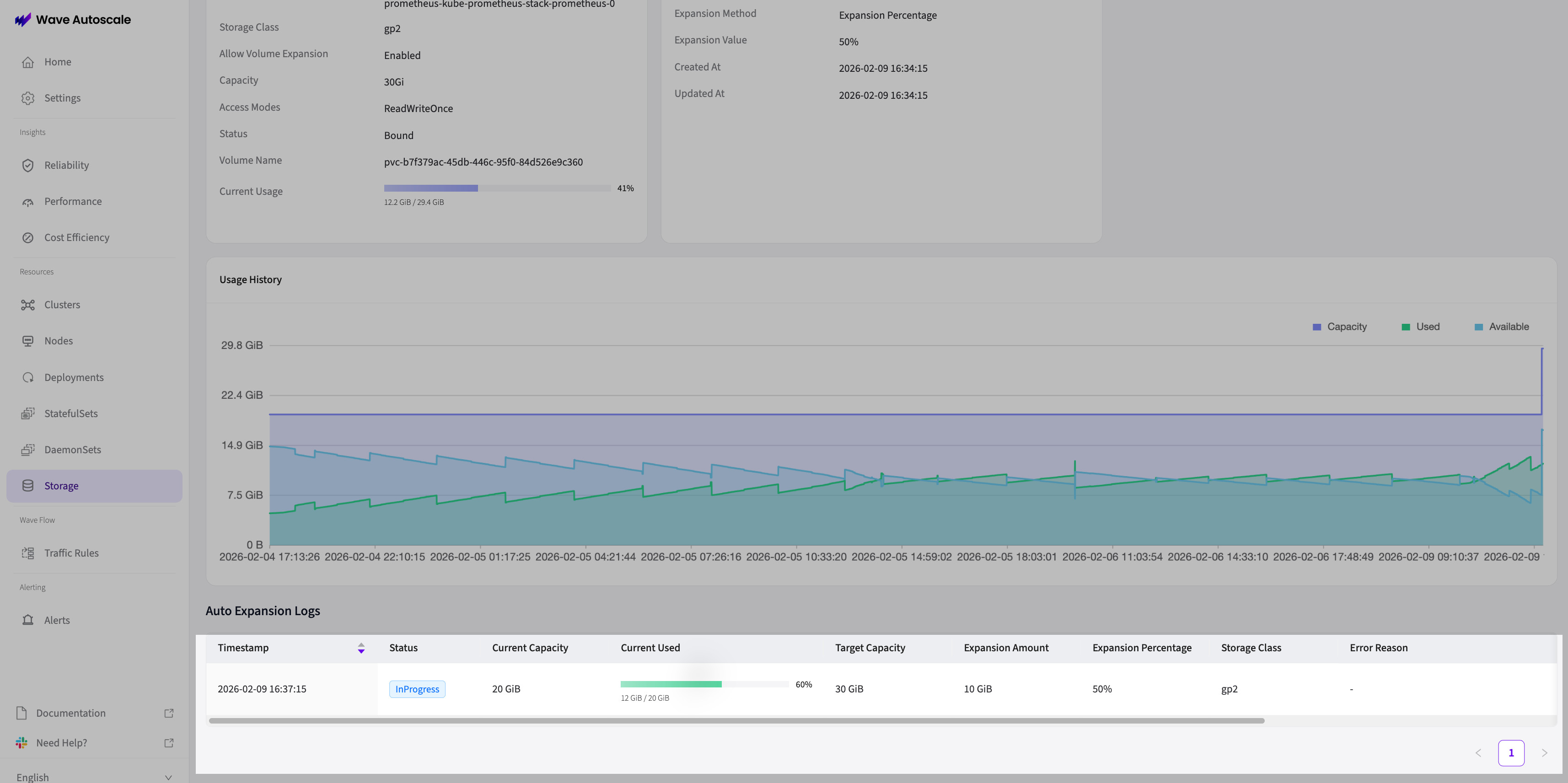
The Auto Expansion tab displays:
- PVC Information Card: Namespace, name, storage class, capacity, allow volume expansion status
- Current Usage: Real-time usage percentage with visual progress bar
- Configuration Card: Current settings, enabled status, creation/update timestamps
- Usage History Chart: Time-series visualization of capacity and usage trends
- Auto Expansion Logs Table: Detailed log of all expansion attempts
Common Expansion Patterns
Choose configuration based on your workload characteristics:
🗄️ Database PVC (Proportional Growth)
Best for databases where data size correlates with storage needs:
Configuration:
  Threshold Percentage: 80%
  Expansion Method: Percentage
  Expansion Percentage: 50%
  Max Capacity: 512000 MiB (500 GiB)

Behavior:
  - 10 GiB at 80% usage → expands to 15 GiB
  - 15 GiB at 80% usage → expands to 22.5 GiB
  - Continues until 500 GiB limit reached
  - Prevents runaway costs with max capacity
Why this pattern:
- Database growth is often proportional to existing data
- Percentage expansion scales naturally with data size
- Max capacity prevents unexpected cost spikes
📝 Log Storage (Fixed Incremental Growth)
Best for log files or time-series data with predictable growth rates:
Configuration:
  Threshold Percentage: 85%
  Expansion Method: Fixed Size
  Expansion Size: 10240 MiB (10 GiB)
  Max Capacity: 204800 MiB (200 GiB)

Behavior:
  - Always adds exactly 10 GiB when threshold hit
  - Predictable capacity planning
  - Works regardless of current size
  - Cap at 200 GiB for cost control
Why this pattern:
- Log files accumulate at relatively constant rates
- Fixed increments simplify capacity forecasting
- Easier to predict storage costs over time
💾 Cache Volume (Aggressive No-Limit Growth)
Best for caches where data can be evicted but performance benefits from larger size:
Configuration:
  Threshold Percentage: 75%
  Expansion Method: Percentage
  Expansion Percentage: 100%
  Max Capacity: (not set)

Behavior:
  - 10 GiB at 75% usage → doubles to 20 GiB
  - 20 GiB at 75% usage → doubles to 40 GiB
  - No maximum limit (grow as needed)
  - Application handles cache eviction
Why this pattern:
- Cache performance improves with larger capacity
- Aggressive doubling reduces expansion frequency
- Application manages data eviction internally
- No max capacity since cache data is not critical
Using No Max Capacity
Setting no max capacity allows unlimited growth, which can lead to:
- Unexpected storage costs
- Resource exhaustion in cloud environments
- Difficulty with capacity planning
Only use unlimited growth for:
- Development/testing environments
- Workloads with built-in data management (caches, temporary data)
- When you have alerts on storage costs
Monitoring Expansion Activity
Track expansion history and current status:
Usage History Chart
The time-series chart displays:
- Capacity Line: Shows PVC capacity over time, with step increases when expansions occur
- Usage Line: Shows actual storage consumption
- Visual Indicators: Easily spot expansion events and usage trends
- Time Range: Configurable time window (last 24h, 7d, 30d)
Expansion Logs Table
The logs table provides detailed audit trail:
| Column | Information | Use Case |
|---|---|---|
| Timestamp | When expansion occurred | Correlate with application events |
| Status | Current expansion status | Identify failures requiring action |
| Current Capacity | PVC size before expansion | Baseline for expansion calculation |
| Target Capacity | New PVC size after expansion | Verify expected growth |
| Current Usage | Storage used at expansion time | Confirm threshold trigger |
| Expansion Bytes | Amount added | Track expansion amounts over time |
| Storage Class | Storage class used | Verify correct storage tier |
| Error Reason | Failure details (if failed) | Troubleshoot issues |
The table supports:
- Sorting: Click column headers to sort by any field
- Pagination: Navigate through historical logs (10 items per page)
- Color Coding: Status badges with color (green=Completed, yellow=InProgress, red=Failed)
- Human Readable Sizes: Capacities shown in GiB/TiB for easy reading
Troubleshooting
Common Issues and Solutions
StorageClass Doesn't Support Expansion
Error: "StorageClass does not support volume expansion"
Solution:
# Check current StorageClass
kubectl get storageclass <storage-class-name> -o yaml

# Update to enable expansion
kubectl patch storageclass <storage-class-name> -p '{"allowVolumeExpansion": true}'

# Verify the change
kubectl get storageclass <storage-class-name> -o jsonpath='{.allowVolumeExpansion}'
Expansion Stuck in InProgress
The expansion remains in "InProgress" status for extended periods.
Common causes:
-
Filesystem Resize Pending: Some storage providers require pod restart for filesystem expansion
- Check PVC conditions:
kubectl describe pvc <pvc-name> - Look for
FileSystemResizePendingcondition - Restart pods using the PVC to trigger filesystem resize
- Check PVC conditions:
-
Storage Provider Limitation: The underlying storage doesn't support online expansion
- Verify storage provider documentation
- May require downtime for expansion
-
Volume Controller Issue: Kubernetes volume controller encountering errors
- Check controller logs:
kubectl logs -n kube-system <volume-controller-pod> - Review PVC events:
kubectl describe pvc <pvc-name>
- Check controller logs:
MaxCapacityReached Preventing Expansion
PVC reached configured maximum capacity limit.
Options:
- Increase Max Capacity: Edit configuration to raise the limit
- Clean Up Data: Delete unnecessary files to free space
- Remove Max Capacity: Unset max capacity for unlimited growth (use cautiously)
- Migrate to Larger Volume: Create new PVC and migrate data
Expansion Not Triggering
Usage exceeds threshold but no expansion occurs.
Checklist:
- Auto Expansion is enabled for the PVC
- Current usage actually exceeds threshold (check metrics)
- Not already at max capacity
- No expansion currently in progress
- StorageClass supports expansion
- RBAC permissions configured correctly
Expansion Calculation Seems Wrong
The target capacity doesn't match expected value.
Remember:
- Percentage expansion:
new_capacity = current_capacity × (1 + expansion_percentage / 100) - Fixed size expansion:
new_capacity = current_capacity + expansion_size_bytes - Max capacity reduces expansion if it would exceed limit
- Kubernetes may round capacity to storage provider's allocation unit
Best Practices
Production Deployment Guidelines
Set Realistic Thresholds:
- 70-80% for production databases (balance safety vs. cost)
- 80-85% for development environments (more aggressive)
- 85-90% for log/cache volumes (can tolerate tighter margins)
Always Configure Max Capacity:
- Prevents runaway costs from data leaks or bugs
- Set based on budget and maximum expected data size
- Use monitoring/alerts when approaching max capacity
Monitor Expansion Frequency:
- Too frequent (daily/hourly): Initial capacity too small, increase base size
- Too rare (months): Could increase threshold to save costs
- Just right (weekly/monthly): Matches natural data growth
Test in Non-Production First:
- Verify StorageClass supports expansion
- Confirm expansion completes successfully
- Check application behavior during expansion
- Validate monitoring and alerting
Use Percentage for Variable Growth:
- User-generated content
- Database data
- Document/media storage
Use Fixed Size for Predictable Growth:
- Log files
- Time-series metrics
- Append-only databases
Review Logs Regularly:
- Check for failed expansions weekly
- Investigate MaxCapacityReached events
- Adjust thresholds based on observed patterns
- Correlate with application events
Related Documentation
- PV Lifecycle Overview: Understand the complete PV Lifecycle Management system
- Getting Started: Step-by-step setup guide for Auto Expansion
- Auto Clean Up: Learn about unused PV detection and cleanup