Getting Started with Autopilot
This quick start walks you through enabling Autopilot for your Kubernetes workloads from the dedicated Autopilot page.
Prerequisites
Before enabling Autopilot, your workload must have:
- CPU Request defined in the workload spec
- Memory Request defined in the workload spec
- WA Metrics Agent collecting metrics from your cluster
If your workload has an active HPA, remove it before switching to full Autopilot mode. Monitoring mode is fine alongside an HPA.
Step 1: Open the Autopilot page
In the sidebar, under Wave Autoscale, open Autopilot, then pick your cluster from the selector in the top right.
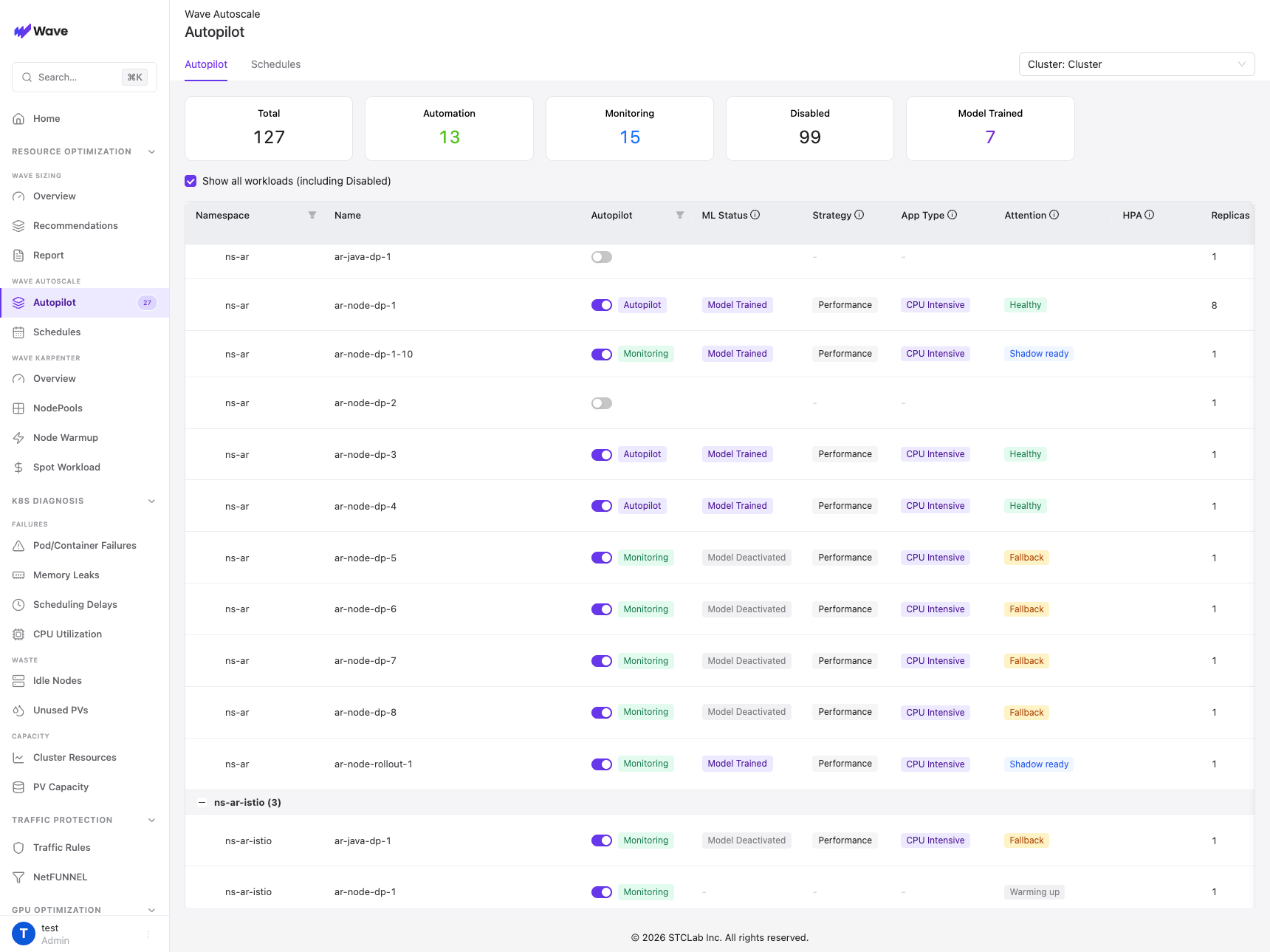
Fleet-level KPIs run across the top:
- Total: workloads Wave manages
- Automation: workloads with Autopilot actively scaling
- Monitoring: workloads observing only, with no scaling applied
- Disabled: workloads with Autopilot off
- Model Trained: workloads whose ML model has finished training
Each row shows the workload's Autopilot toggle and mode (Autopilot or Monitoring), ML Status (Model Trained or Model Deactivated), Strategy (Performance or Cost), App Type (CPU or Memory Intensive), an Attention state (Warming up → Shadow ready → Healthy, or Fallback), HPA, and current Replicas. Tick Show all workloads (including Disabled) to see everything.
Step 2: Enable Monitoring mode
Start by observing predictions without applying them:
- Find your workload in the table.
- Toggle its Autopilot switch on. It starts in Monitoring mode.
- Wait 24-48 hours while the ML model learns your workload's pattern.
In Monitoring mode, Autopilot collects metrics and generates predictions but applies no scaling. Watch the Attention column move from Warming up to Shadow ready, and ML Status reach Model Trained.
Step 3: Configure and switch to Autopilot
Once the model is trained, open the workload (click its name) and set its Autopilot configuration:
- Strategy: Optimize for Performance or Optimize for Cost (see Cost vs Performance)
- App Type: CPU Intensive or Memory Intensive
- Scaling metric: Network In or Requests
- Min / Max Replicas: your replica bounds, for example 2 to 10
- Gradual Scaling: on, to prevent rapid scale-down
Then change the mode from Monitoring to Autopilot so Wave applies scaling decisions. Full option reference: Core Configuration.
Step 4: Monitor
Back on the Autopilot page, track your workloads:
- Attention should settle on Healthy. Fallback means Autopilot is temporarily using HPA-style scaling; open the workload to see why.
- The Automation and Model Trained KPIs show fleet-wide progress.
- Open a workload for its per-decision scaling log.
Troubleshooting
Cannot enable Autopilot? "Please set 'CPU Request' and 'Memory Request' first". Add resource requests to your workload manifest:
resources:
  requests:
    cpu: "500m"
    memory: "512Mi"
HPA conflict? "Remove HPA to control autopilot". Delete the HPA to use Autopilot, or keep it and stay in Monitoring mode.
Not scaling? Confirm the mode is Autopilot (not Monitoring), the ML model is trained, and the WA Metrics Agent is collecting data.
Next Steps
- Core Configuration: every Autopilot setting explained
- Cost vs Performance: choosing a strategy
- Timing Controls: cooldown and gradual scaling
- Autopilot Scheduler: time-based configuration changes
- Predictive Scaling: forecasting for proactive scaling