Getting Started with Smart Sizing
Smart Sizing needs no per-workload setup: metric collection starts automatically for every Deployment, StatefulSet, DaemonSet, Argo Rollout, and DeploymentConfig as soon as Wave is installed.
Prerequisites
- Wave installed with the metrics agent running (Quick Start).
- Kubernetes 1.27+ only if you want In-place Pod Resize; everything else works on any supported version.
Step 1: Open Wave Sizing
In the sidebar, open Wave Sizing. It has three pages:
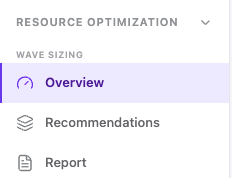
- Overview: cluster-wide savings, sizing health, and a ranked to-do list.
- Recommendations: every container's current vs recommended CPU/memory.
- Report: a shareable cluster right-sizing summary (see Smart Sizing Report).
On a fresh install, workloads show as warming up. First recommendations appear within 24-48 hours; the usage-based model stabilizes after 7 days of data.
Step 2: Triage on the Overview page
The Sizing Console ranks what to act on first:
- Top Opportunities: over-provisioned containers ranked by estimated monthly savings.
- Reliability Risks: under-provisioned containers at risk of throttling or OOMKill. Handle these first.
Click any row to jump straight to that workload's Smart Sizing tab.
Step 3: Review the workload's recommendation
On the workload detail page, open the Smart Sizing tab. Each container card shows current request/limit, the recommendation, and a usage chart; see Smart Sizing Tab in Workload for how to read it.
If the tab is labeled Smart Sizing with HPA or Smart Sizing with Autopilot, the workload uses the performance model and needs at least 5 data points at different replica counts before recommending; see Overview.
Step 4: Apply manually with Resize Now
Click Resize Now on a container to apply the recommendation on demand. Choose In-Place Pod Resize (no restart, K8s 1.27+) or Edit CRD (manifest change, rolling restart). Full details: Resize Now.
Start with one non-critical workload, apply, and watch it for a few cycles:
- CPU throttling stays low and no OOMKills appear.
- The status badge on the Recommendations page moves toward OK.
The first resize captures the container's original values. You can always roll back with Restore Original.
Step 5: Graduate to Realtime Resizing
Once you trust the recommendations for a workload, let Wave keep it sized automatically:
- On the Smart Sizing tab, click Realtime Resizing and pick In-place or Manifest (default is Off).
- Open Container Settings on each container you want auto-applied and enable Apply recommendations automatically.
Read the operational caveats first: Realtime Resizing.
Step 6: Monitor
- Apply History on each workload's Smart Sizing tab logs every automatic apply with old → new values and the outcome.
- The Sizing Console KPIs (Potential Monthly Savings, Just-Right Rate, Reliability Risk) track cluster-wide progress.
Troubleshooting
| Symptom | Cause |
|---|---|
| No recommendation, badge says WARMING UP | Not enough data yet, wait 24-48 hours |
| No recommendation on an HPA/Autopilot workload | The performance model needs ≥ 5 data points at distinct replica counts; low-traffic workloads take longer |
| In-place option disabled | Cluster doesn't support In-place Pod Resize (K8s < 1.27, or the feature gate is off on 1.27-1.32); use the manifest path |
| Buttons disabled with a "Managed by CRD" tooltip | The console is in CRD mode (GitOps); edit the corresponding Wave CR instead |