Getting Started with PV Lifecycle Management
This quick start guide walks you through enabling PV Lifecycle Management for your Kubernetes Persistent Volumes. You'll configure automatic expansion for a PVC and enable cluster-wide unused PV cleanup.
Prerequisites
Before enabling PV Lifecycle Management, ensure you have:
- PVCs configured in your workloads (for auto-expansion)
- StorageClass with expansion support: Verify
allowVolumeExpansion: truefor PVCs you want to auto-expand
Step 1: Access Storage Management
Navigate to the PVC management interface:
- Log in to the Wave web console
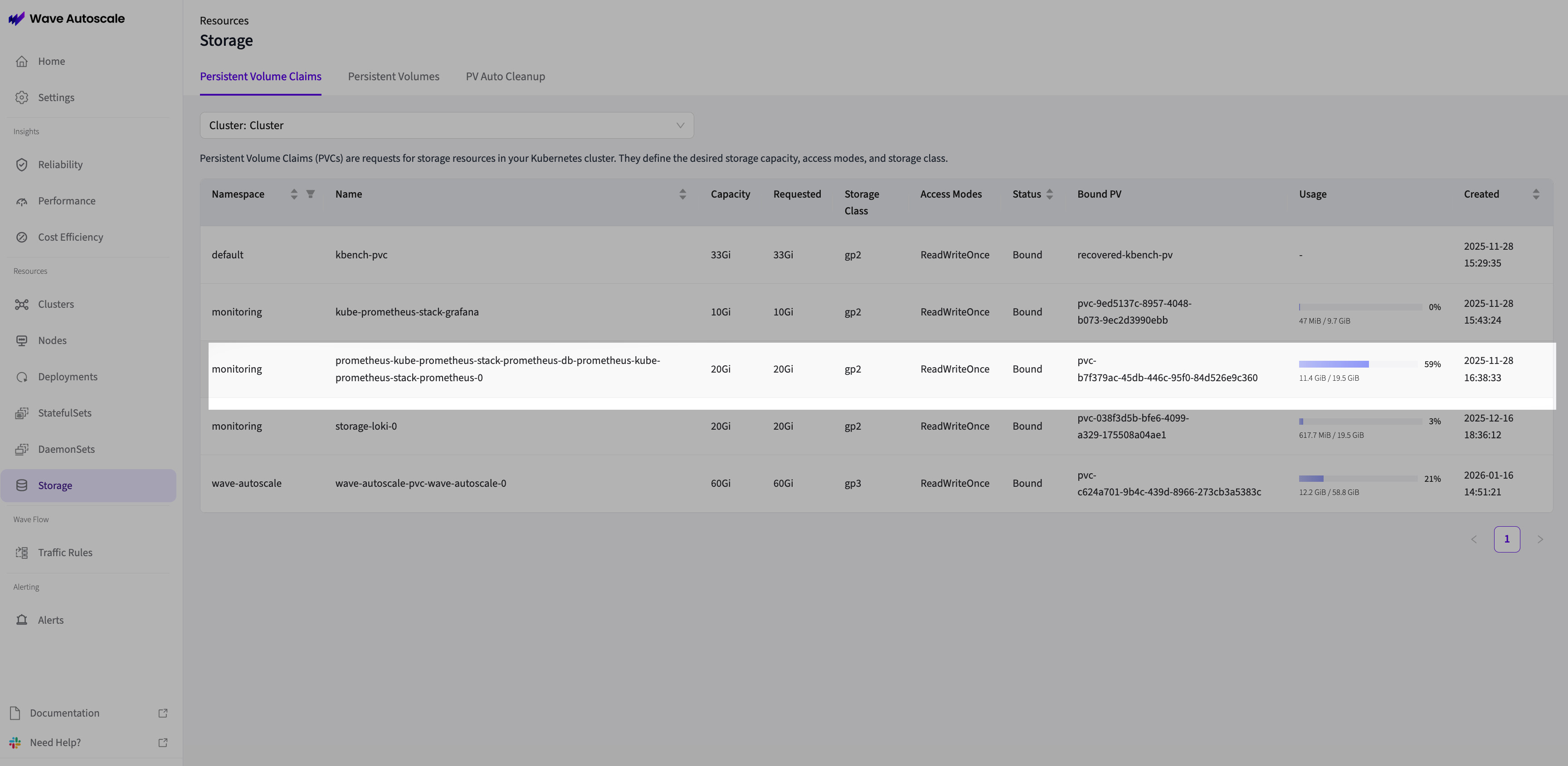
- From the left sidebar, navigate to Storage → Persistent Volume Claims
- Select your cluster from the dropdown at the top
- You'll see a list of all Persistent Volume Claims in your cluster
Step 2: Select a PVC for Auto Expansion
Configure auto-expansion for a specific PVC:
- Find the PVC you want to manage in the list (e.g., database storage, application data)
- Click on the PVC name to open the detail page
- Navigate to the Auto Expansion tab
- You'll see the current PVC information, usage statistics, and configuration options
Step 3: Configure Auto Expansion Settings
Set up threshold-based expansion:

-
In the Auto Expansion tab, click the Settings button
-
Configure the following settings in the modal:
Basic Configuration:
- Threshold Percentage: Set the usage percentage that triggers expansion (e.g., 80%)
- Expansion Method (choose one):
- Expansion Percentage: Expand by percentage of current size (e.g., 50%)
- Expansion Size (MiB): Fixed expansion amount (e.g., 1024 MiB for 1 GiB)
- Max Capacity (MiB): Optional upper limit to prevent runaway growth (e.g., 102400 for 100 GiB)
-
Click Save to apply the configuration
-
The expansion monitoring will start immediately

StorageClass Doesn't Support Expansion?
If you see an error message that the StorageClass doesn't support expansion, you need to update your StorageClass:
apiVersion: storage.k8s.io/v1
kind: StorageClass
metadata:
  name: your-storage-class
provisioner: kubernetes.io/aws-ebs  # or your CSI driver
allowVolumeExpansion: true  # Enable this
parameters:
  type: gp3
Re-apply the StorageClass and try again. Note: Existing PVCs created from this StorageClass will automatically inherit the expansion capability.
Step 4: Enable Auto Clean Up (Optional)
Configure cluster-wide unused PV cleanup:
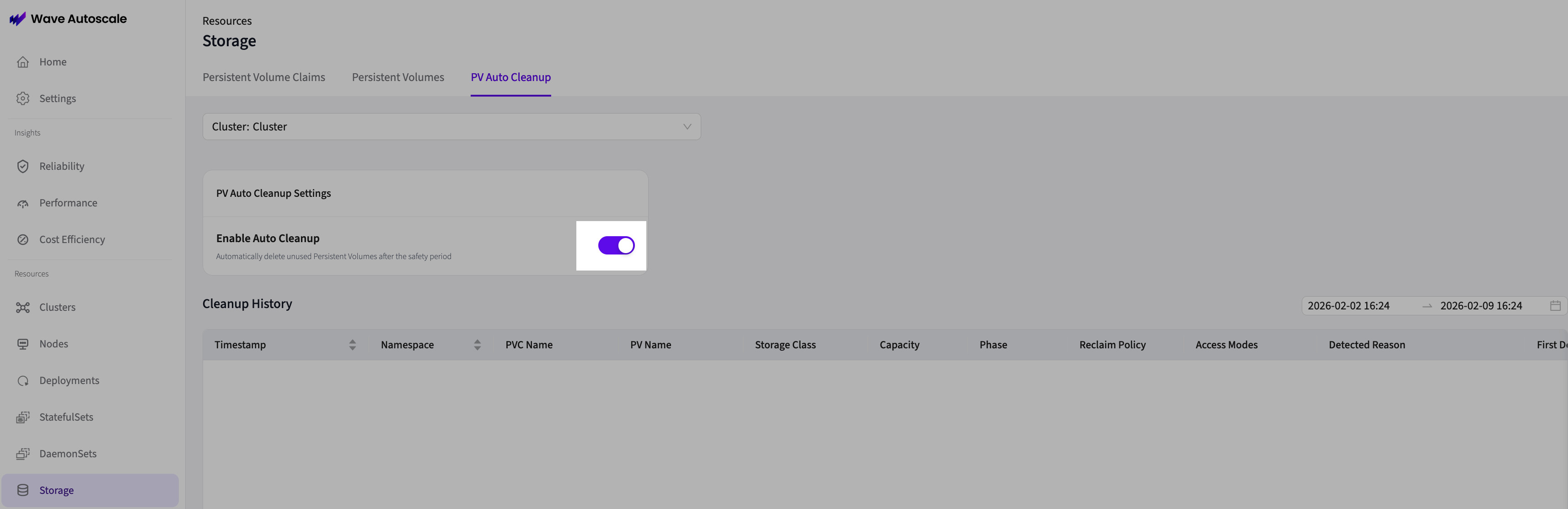
- From the left sidebar, navigate to Storage → PV Auto Cleanup
- Select your cluster from the dropdown at the top
- Toggle Enable PV Auto Clean Up to ON
- The system will start detecting and cleaning up unused PVs immediately
Immediate Cleanup When Enabled
Wave cleans up unused PVs immediately when cleanup is enabled. To protect important PVs:
- Use per-PV opt-out annotation:
waveautoscale.io/pv-cleanup: disabled - Or disable cleanup globally in Settings until you're ready
- Detection logs track timestamps for audit trail (7-day reference period for tracking)
If a PV becomes bound again before deletion completes, it's marked as resolved and cleanup is cancelled.
Step 5: Monitor Performance
Track auto-expansion activity and cleanup detection:
View Auto Expansion Activity:
- Navigate to Storage → Persistent Volume Claims -> (Select a pvc form the list) → Auto Expansion section
- Review the Usage History Chart showing capacity and usage trends over time
- Check the Auto Expansion Logs Table for:
- Timestamp of each expansion
- Current and target capacity
- Expansion status (InProgress, Completed, Failed)
- Error reasons (if failed)
View Cleanup Detection:
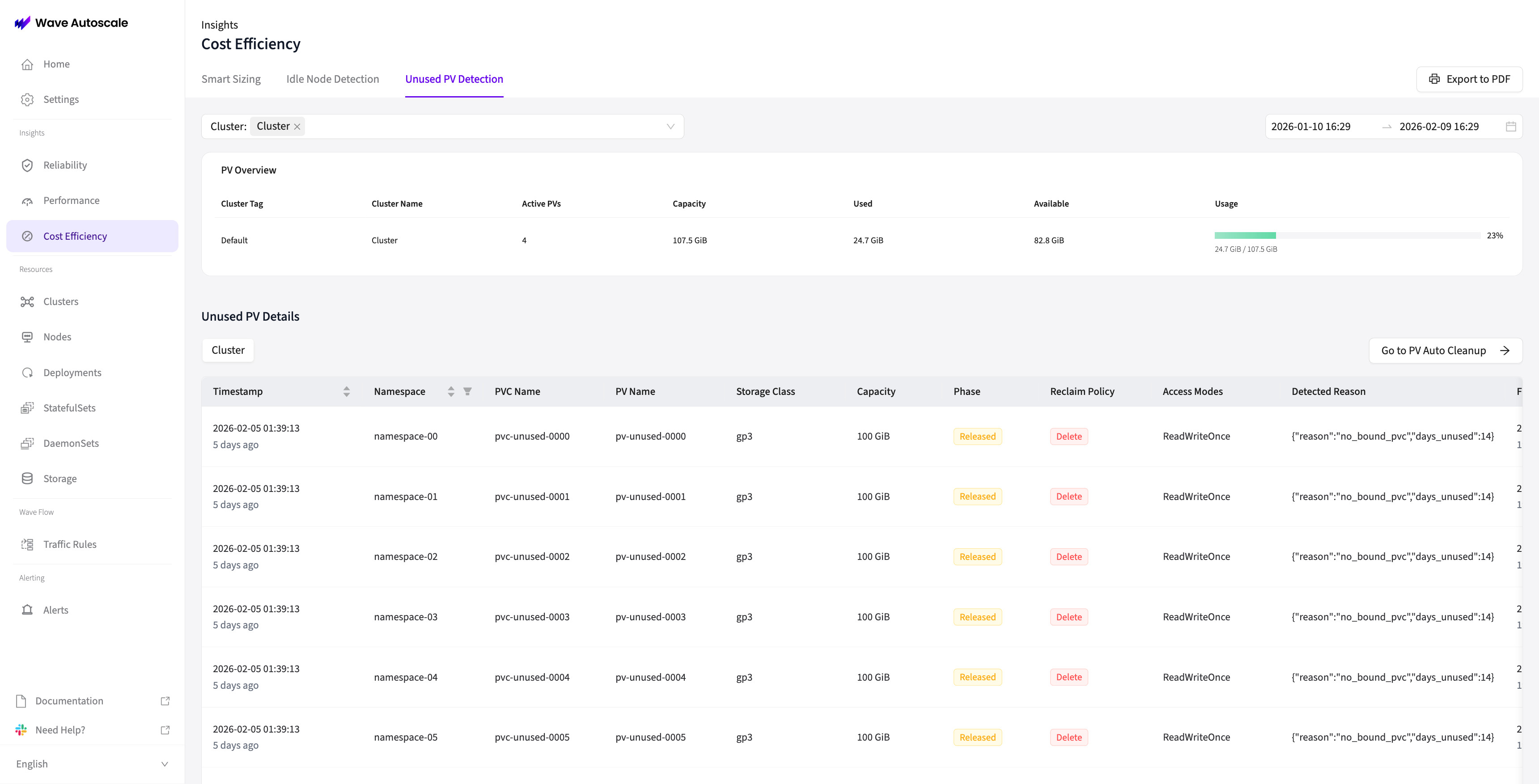
- Navigate to Insights → Cost Efficiency → Unused PV Detection
- Review detected unused PVs with:
- Detection timestamp and reasons
- Cleanup status (InProgress, Completed, Failed)
- PV details (capacity, storage class, phase)
Example: Quick Setup for Database PVC
Here's a typical configuration for a production database volume:
# Navigate to: K8s → Storage → PVCs → postgres-data → Auto Expansion tab

Configuration:
  Threshold Percentage: 80%
  Expansion Method: Percentage
  Expansion Percentage: 50%
  Max Capacity: 512000 MiB (500 GiB)

Behavior:
  - At 80% full (e.g., 8 GiB used of 10 GiB)
  - Expands to 15 GiB (50% increase)
  - Continues until 500 GiB max capacity reached
  - All expansions logged with timestamps and status
Troubleshooting
Common Issues and Solutions
Auto Expansion Not Working:
- Verify StorageClass has
allowVolumeExpansion: true - Check that threshold percentage is set correctly
- Ensure one expansion method is configured (not both)
- Review Auto Expansion logs for error messages
- Verify RBAC permissions for PVC management
Expansion Stuck in "InProgress":
- Check PVC conditions:
kubectl describe pvc <pvc-name> - Look for
ControllerResizeErrororVolumeResizeFailedconditions - Verify underlying storage provider supports online expansion
- Some storage classes require pod restart for filesystem resize
PV Not Being Cleaned Up:
- Verify cleanup is globally enabled in Settings → PV Lifecycle
- Check if PV has opt-out annotation:
waveautoscale.io/pv-cleanup: disabled - Check if StorageClass has opt-out annotation preventing cleanup
- Review cleanup logs in Insights → Cost Efficiency for error details
- Verify PV doesn't have protection finalizers (backup tools, etc.)
MaxCapacityReached Status:
- PVC has reached the configured maximum capacity limit
- Either increase the max capacity setting, or clean up data to free space
- This prevents runaway storage growth and cost overruns
Next Steps
Now that you have PV Lifecycle Management configured, explore the detailed feature guides:
- Auto Expansion: Deep dive into expansion methods, thresholds, and monitoring
- Auto Clean Up: Understand detection logic, safety features, and opt-out options
Need Help?
Check the logs for detailed information:
- Auto Expansion Logs: PVC detail page → Auto Expansion tab → Logs table
- Cleanup Detection Logs: Insights → Cost Efficiency → Unused PV Detection
- Wave Logs: Review core logs for system-level errors
Each log entry includes timestamps, status, metrics, and error reasons to help troubleshoot issues.